11.3 Simulation Management
11.3.1 Overview
Modelling studies commonly require simulation of multiple events or time periods. Examples include the following cases.
- Coastal studies that consider different seasons, climate change conditions, multiple tidal periods or the duration of individual dredging campaigns.
- Storm tide studies that evaluate alternative combinations of tropical cyclone tracks and tidal conditions.
- Flood studies that assess annual exceedance probability events, including 0.2, 0.5, 1.0, 2.0, 5.0, 10.0, 20.0 and 50.0 percent events, as well as extreme flood conditions.
- Water quality studies that investigate multiple scenarios to assess impacts of proposed changes or effectiveness of management interventions.
To support simulation management and quality control, TUFLOW FV includes three features that may be used individually or in combination.
- Model Events provide event management capability to support simulation of multiple event combinations, such as magnitude, duration, temporal pattern or climate change condition, using a single set of control files rather than creating separate control files for each simulation. See Section 11.3.3.
- Model Scenarios provide a framework for simulation of alternative model configurations, such as proposed bathymetric changes, from a single
.fvccontrol file rather than requiring separate control files for each scenario. See Section 11.3.4. - Model Variables enable assignment of a user specified value to a single string variable. See Section 11.3.5.
Construction and use of events, scenarios and variables are described in the following sections, after introduction of the general nomenclature used to define these features.
11.3.2 Nomenclature
A text substitution mechanism is required to enable use of a single .fvc control file for repeated execution of multiple events and or scenarios. TUFLOW FV implements this capability using the tilde ~ symbol to delimit substitutable event and scenario identifiers within .fvc file names. The .fvc file name includes paired tildes for each event and scenario intended to be simulated in combination.
The same control file is executed repeatedly with different event and scenario arguments supplied at run time. These arguments perform defined functions within the .fvc file and are substituted at locations corresponding to the paired tildes in the file name.
For example, where a model requires simulation of two events, such as an inflow event and a tidal event, together with one scenario, such as an alternative bathymetry setting, the .fvc file name must accommodate three substitutable identifiers using tilde pairs. In this context, the identifiers eX and sX denote event and scenario keywords respectively, where X is a sequential integer.
Model_~e1~_~e2~_~s1~_001.fvcIn one configuration, the event and scenario arguments may be defined such that e1 is assigned the value Q100, e2 is assigned the value HighTide and s1 is assigned the value BASECASE. In this case, the reusable .fvc control file is resolved using these argument values.
Model_Q100_HighTide_BASECASE_001.fvcThis .fvc control file is not created in this substituted form, as doing so would negate the purpose of using wildcard substitution within a single .fvc file. Output files produced by the simulation are named according to the resolved event and scenario values applied during execution.
Model_Q100_HighTide_BASECASE_001.nc
Model_Q100_HighTide_BASECASE_001.csv
This means that only one *.fvc is used, but multiple sets of uniquely named output files are created.
In addition to tilde based substitution for events and scenarios, variables may be referenced within .fvc files using double angle bracket notation. Where a variable named DO_HIGH is assigned a value of 6.0, the variable may be referenced anywhere within an .fvc file using the syntax <<DO_HIGH>>. An example application is provided for specification of water quality initial conditions.
Use of this notation for configuration and execution of events, scenarios and variables is described in the following sections.
11.3.3 Events
Event management supports execution of multiple event combinations, such as magnitude, duration, temporal pattern and climate change condition, using a single set of control files rather than creating separate control files for each simulation.
For example, a flood study may require simulation of the 1 percent, 2 percent and 5 percent Annual Exceedance Probability (AEP) events. Each AEP event may require simulation for multiple storm durations, such as 1 hour and 2 hours. Figure 11.1 presents the number of .fvc control files required with and without use of event management.
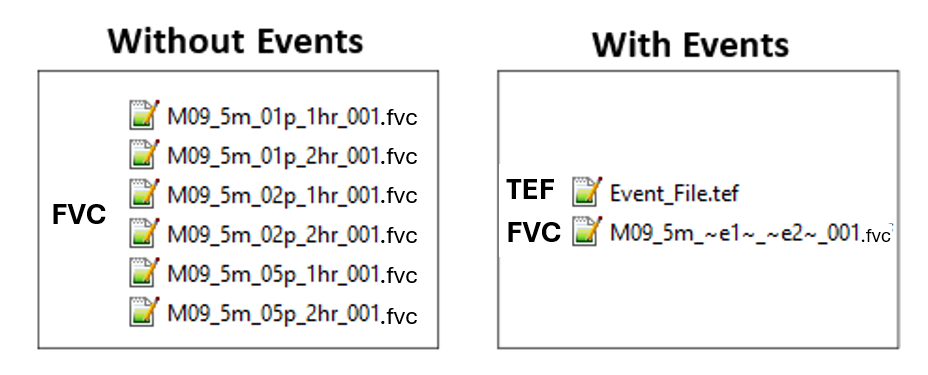
Figure 11.1: Reduction of Control Files using Event Management
| Command | Description |
|---|---|
| Define Event | Conditional - Required when using event simulation management logic. Starts the definition of a command block for the event. |
| End Define | Conditional - Required if using event simulation management logic. Ends the definition of a command block for the event. |
| BC Event Source | Conditional - Required if using model events funcationality. Assigns dynamic text replacement for user-defined text in .fvc files. |
| Model Events | Optional - Used to set the default events. In practice these defaults are typically overridden at runtime. |
| Event File | Optional - Reference to the TUFLOW FV Event File. |
| If Event | Optional - Enables use of conditional programming statement. |
| Else If Event | Optional - Enables nested if event conditional programming statements |
| Else | Optional - Catch all argument for logic not captured by If Event or Else If Event. |
| Pause | Optional - Used to pause a simulation. Prints a message to the console window. |
| End If | Conditional - Required if using event simulation management logic or nested scenario definitions. Closes an event conditional programming block. |
11.3.3.1 TUFLOW Event File
Multiple events are defined using a TUFLOW Event File, commonly with the .tef extension. The file contains .fvc commands that apply to specific events. The .tef file is referenced within the .fvc file using the
Commands from the .tef file are inserted into the simulation at the location where the .fvc file at that position. As the event file is commonly used to overwrite default command values, the .fvc file. An example of referencing a TUFLOW Event File within a .fvc file is provided below.
Within the .tef file, event specific commands are defined between the -e run option or the
Any TUFLOW FV command may be included within a Define Event block, however event blocks are commonly used to define commands related to model boundary conditions and simulation timing, including start and end times. Global .fvc commands may also be included within the .tef file by placing them outside the Define Event blocks, typically at the beginning of the file.
The .fvc files. This functionality allows boundary conditions, include files or model parameters to be varied through use of a single .fvc file.
An example of .tef syntax is provided in the following syntax block. The example follows the nomenclature described in Section 11.3.2, using paired tildes to identify text intended for substitution. These substitutable text identifiers are user defined and are distinct from reserved keywords. For example, aep is user defined, whereas e1 represents a reserved keyword.
The Q100 and 2h are specified at runtime. In this configuration, the commands perform the following functions.
- Within the Define Event block,
Timestep Limits are selected according to event severity. Time step values are modified to accommodate events with increased water depths and velocities. - The
BC Event Source command assigns dynamic text substitution variables for rainfall intensity and storm duration.
If a model was run with Q100 and 2hr events specified then the substitution behaviour of
- Text replacement is supported within directory paths and file names specified to the right of the
== operator.
Is substituted to:
- Replacement of command input parameters to the right of the == is supported. For example:
Is substituted to:
- Replacement is not allowed in TUFLOW FV command syntax to the left of the ==. For example:
This will result in an error due to the ~aep~ to the left of the == operator.
- BC Event Source text replacement is currently limited to
.fvcand include file commands. It is not currently available for commands within Sediment Transport (.fvsed), Water Quality (.fvwq) and Particle Tracking (.fvptm) Control Files.
11.3.3.2 Running Events
Two methods are available for execution of multiple events using a single .fvc control file.
- Use a batch file (
.bat). The-eor-eXoptions, whereXis an integer from 1 to 9, may be specified to execute multiple events using the same.fvccontrol file. This method supports automated execution of multiple event combinations. - Use the
Model Events command. Event definitions may be modified manually within the.fvcfile prior to each simulation. When the-eoption is used at runtime through a batch file, it overrides any events defined using theModel Events command within the.fvcfile. TheModel Events command is typically used to define default event settings.
Examples of running events from the command line are presented in Section 11.3.3.3.
To incorporate event identifiers into output file names and maintain uniqueness, the text strings ~e~ or ~e<X>~, where <X> is an integer from 1 to 9, may be included within the .fvc file name.
MODEL_~e1~_001.fvc

Can be configured to run any number of e1 event names:

- e1=0100F:  MODEL_0100F_001.fvc
- e1=0200F:  MODEL_0200F_001.fvc
- e1=0500F:  MODEL_0500F_001.fvc
- e1=1000F:  MODEL_1000F_001.fvc
Multiple events can be simulated from a single .fvc file using a batch file. The example below uses three events to vary the event rainfall intensity, duration and temporal pattern. file. The example below uses three events to vary the event rainfall intensity, duration and temporal pattern.
set EXE=C:\Program Files\TUFLOWFV\TUFLOWFV.exe
set OMP_NUM_THREADS=4
%EXE%   -e1         10pct   -e2         01h     -e3         T01         Nile_~e1~_~e2~_~e3~_001.fvc
%EXE%   -e1         10pct   -e2         01h     -e3         T02         Nile_~e1~_~e2~_~e3~_001.fvc
%EXE%   -e1         10pct   -e2         02h     -e3         T01         Nile_~e1~_~e2~_~e3~_001.fvc
%EXE%   -e1         10pct   -e2         02h     -e3         T02         Nile_~e1~_~e2~_~e3~_001.fvc
%EXE%   -e1         05pct   -e2         01h     -e3         T01         Nile_~e1~_~e2~_~e3~_001.fvc
%EXE%   -e1         05pct   -e2         01h     -e3         T02         Nile_~e1~_~e2~_~e3~_001.fvc
%EXE%   -e1         05pct   -e2         02h     -e3         T01         Nile_~e1~_~e2~_~e3~_001.fvc
%EXE%   -e1         05pct   -e2         02h     -e3         T02         Nile_~e1~_~e2~_~e3~_001.fvc
%EXE%   -e1         02pct   -e2         01h     -e3         T01         Nile_~e1~_~e2~_~e3~_001.fvc
%EXE%   -e1         02pct   -e2         01h     -e3         T02         Nile_~e1~_~e2~_~e3~_001.fvc
%EXE%   -e1         02pct   -e2         02h     -e3         T01         Nile_~e1~_~e2~_~e3~_001.fvc
%EXE%   -e1         02pct   -e2         02h     -e3         T02         Nile_~e1~_~e2~_~e3~_001.fvc
%EXE%   -e1         01pct   -e2         01h     -e3         T01         Nile_~e1~_~e2~_~e3~_001.fvc
%EXE%   -e1         01pct   -e2         01h     -e3         T02         Nile_~e1~_~e2~_~e3~_001.fvc
%EXE%   -e1         01pct   -e2         02h     -e3         T01         Nile_~e1~_~e2~_~e3~_001.fvc
%EXE%   -e1         01pct   -e2         02h     -e3         T02         Nile_~e1~_~e2~_~e3~_001.fvc
When a large number of events are executed, use of looping structures within a batch file may simplify execution. This approach reduces repetition compared with listing multiple similar command entries and supports improved robustness. Standard Windows batch file syntax may be applied by defining parameter arrays and iterating through those arrays during execution.
Using this approach, the sixteen TUFLOW FV executions referenced previously may be expressed in a more compact and maintainable form as follows:
set EXE=C:\Program Files\TUFLOWFV\TUFLOWFV.exe
set OMP_NUM_THREADS=4

REM Set arrays e1, e2 and e3
set ev1=10pct 05pct 02pct 01pct
set ev2=01h 02h
set ev3=T01 T02

REM Loop through arrays
for %%a in (%ev1%) do (
  for %%b in (%ev2%) do (
    for %%c in (%ev3%) do (
      %EXE% -e1 %%a -e2 %%b -e3 %%c Nile_~e1~_~e2~_~e3~_001.fvc
    )
  )
)
For further examples of running events from batch files including advanced batch looping refer to the TUFLOW FV Wiki.
11.3.3.3 Event Examples
Three examples are presented. Similar examples can be downloaded and run licence-free using the TUFLOW FV Example Model Suite.
- Examples 1 and 2 describe an estuary model use case in which a series of simulation years from 2016 to 2018 is executed. Example 1 applies a single event condition to select the simulation year. Example 2 introduces a second event condition to represent climate change allowance selection for inflow and downstream water level conditions.
- Example 3 describes a catchment model that applies three event conditions to execute combinations of rainfall event intensity, duration and temporal pattern.
In each example, start time, end time, initial condition and output directory commands are defined within the event blocks to modify model configuration according to the event being simulated.
Events Example 1 - Single Event Condition
The .fvc file to be configured with events is named Example_Estuary_001.fvc. This example outlines the updates required to make the .fvc file event compatible.
Within each BC Block, add BC Event Source wildcards so that the boundary condition selected is a function of the model event.
To ensure that each run has unique output result names and diagnostics, add “~e1~” in the .fvc file name, for example “Example_Estuary_~e1~_001.fvc”. With this new file add the Event File command to the bottom of the .fvc file.
The “Estuary_Events.tef” file contains the following.
With this configuration multiple events can be simulated from a single .fvc file using a batch file. For more information on running batch files refer to the TUFLOW FV Wiki.
set EXE=C:\Program Files\TUFLOWFV\TUFLOWFV.exe
set OMP_NUM_THREADS=4
%EXE%   -e1         2016        Example_Estuary_~e1~_001.fvc
%EXE%   -e1         2017        Example_Estuary_~e1~_001.fvc
%EXE%   -e1         2018        Example_Estuary_~e1~_001.fvc
Events Example 2 - Two Event Conditions
Within each BC Block:
Include “~e1~” and “~e2~” in the .fvc file name, for example “Example_Estuary_~e1~_~e2~_001.fvc”, and add the following line to the bottom of the .fvc file.
The “Estuary Events.tef” file contains the following:
Multiple events can be simulated from one .fvc file using a batch file. For more information on running batch files refer to the TUFLOW FV Wiki.
set EXE=C:\Program Files\TUFLOWFV\TUFLOWFV.exe
set OMP_NUM_THREADS=4

%EXE%   -e1         2016    -e2         CC_EXST         Example_Estuary_~e1~_~e2~_001.fvc
%EXE%   -e1         2016    -e2         CC_2050         Example_Estuary_~e1~_~e2~_001.fvc
%EXE%   -e1         2016    -e2         CC_2100         Example_Estuary_~e1~_~e2~_001.fvc
%EXE%   -e1         2016    -e2         CC_2150         Example_Estuary_~e1~_~e2~_001.fvc
%EXE%   -e1         2017    -e2         CC_EXST         Example_Estuary_~e1~_~e2~_001.fvc
%EXE%   -e1         2017    -e2         CC_2050         Example_Estuary_~e1~_~e2~_001.fvc
%EXE%   -e1         2017    -e2         CC_2100         Example_Estuary_~e1~_~e2~_001.fvc
%EXE%   -e1         2017    -e2         CC_2150         Example_Estuary_~e1~_~e2~_001.fvc
%EXE%   -e1         2018    -e2         CC_EXST         Example_Estuary_~e1~_~e2~_001.fvc
%EXE%   -e1         2018    -e2         CC_2050         Example_Estuary_~e1~_~e2~_001.fvc
%EXE%   -e1         2018    -e2         CC_2100         Example_Estuary_~e1~_~e2~_001.fvc
%EXE%   -e1         2018    -e2         CC_2150         Example_Estuary_~e1~_~e2~_001.fvc
Events Example 3 - Three Event Conditions
The following example shows the setup for a floodplain model with multiple different design rainfall intensities, rainfall durations and temporal patterns.
Within each BC Block:
Include “~e1~”, “~e2~” and “~e3~” in the .fvc file name, for example “Nile_~e1~_~e2~_~e3~_001.fvc”, and the following line to the bottom of the .fvc file.
The “Nile Events.tef” file contains the event block logic provided below.
11.3.3.4 Additional Functionality
11.3.3.4.1 Event Logic Blocks
While a
The Pause command causes TUFLOW FV to stop whenever it is encountered, which in the above case would be if no event had been specified called any of Q1, Q10, Q50 or Q100.
‘OR’ logic can also be used in blocks such as the above by using the ‘|’ character. Noting that the Q50 and Q100
11.3.3.4.2 Events as Variables
Events are also automatically defined as variables and can be assigned accordingly within *.fvc control files. For example, if multiple events (e1) were set up and executed and a separate folder was desired for each event’s suite of outputs, the following syntax in the *.fvc would accomplish this outcome.
If e1 was set to Q2 then the above would be interpreted as:
Similar approaches can be applied to other TUFLOW FV *.fvc commands.
11.3.4 Scenarios
During project and research work, comparison of existing or base case conditions with future design conditions is commonly required. This may involve evaluation of one or more alternative design options. Example applications include the following cases.
- Earthworks or land use changes associated with proposed coastal or floodplain development.
- Construction of new capital works such as ports, dredged channels or alternative channel design options.
- Modification of dam operation strategies.
- Assessment of alternative bridge or hydraulic structure upgrade options.
Model Scenarios provide a framework for simulation of alternative design options using a single .fvc control file, rather than creation of separate control files for each scenario. Commands associated with scenario configuration are presented in Table 11.2.
| Command | Description |
|---|---|
| If Scenario | Conditional - Required if using scenario based conditional programming. Required if using scenario functionality. Controls which commands are to be applied depending on the scenario or combination of scenarios specified by the user. |
| Model Scenarios | Optional - Used to set the default scenario. In practice these defaults are typically overridden at runtime. |
| Else If Scenario | Optional - Enables nested If scenarios using conditional programming statements. |
| Else | Optional - Catch all argument for logic not captured by If Scenario or Else If Scenario. |
| Pause | Optional - Used to pause a simulation. Prints a message to the console window. |
| End If | Conditional - Required if using event simulation management logic or nested scenario definitions. Required if using scenario functionality. Closes an scenario conditional programming block. |
11.3.4.1 Running Scenarios
The approach to running scenarios is analogous to Model Events, except that a Scenario File similar to the Event File (.tef) is not required.
Two options are available to run scenarios from the same .fvc file:
- Using a batch file (.bat): Specify
--sor--sXoptions, whereXis a number from 1 to 9, to run single or multiple scenarios using the same .fvc file. Refer to the Scenario Examples. This is the recommended approach. - Using the
Model Scenarios command: Change the scenarios manually before each simulation within the .fvc file. Note that if the--soption is used, batch file--scalls override any scenarios defined using theModel Scenarios command within the .fvc. TheModel Scenarios command is typically used to set the default scenario or scenarios.
To automatically insert the name of the scenario or scenarios into the output filenames and make the output names unique, place “~s~” or “~s<X>~”, where <X> is a number from 1 to 9, into the .fvc file name. For example, a study on the Mary River may use the following .fvc file name:
MR_~s1~_~s2~_001.fvcThis can be configured to run any number of s1 and s2 scenarios. For example:
set EXE=C:\Program Files\TUFLOWFV\TUFLOWFV.exe
set OMP_NUM_THREADS=4

%EXE%   -s1         EXG   -s2         BASE        MR_~s1~_~s2~_001.fvc
%EXE%   -s1         DEV   -s2         OPT1        MR_~s1~_~s2~_001.fvc
%EXE%   -s1         DEV   -s2         OPT2        MR_~s1~_~s2~_001.fvc
%EXE%   -s1         DEV   -s2         OPT3        MR_~s1~_~s2~_001.fvc
becomes:
s1=EXG and s2=BASE:   MR_EXG_BASE_001.fvc
s1=DEV and s2=OPT1:   MR_DEV_OPT1_001.fvc
s1=DEV and s2=OPT2:   MR_DEV_OPT2_001.fvc
s1=DEV and s2=OPT3:   MR_DEV_OPT3_001.fvc
By coincidence, the character length for s1 (3) and s2 (4) is consistent between each run. This is not required
Examples of running scenarios from batch files including advanced batch looping are provided in the TUFLOW FV Wiki.
11.3.4.2 Scenario Examples
Scenarios Example 1
In a .fvc file:
TUFLOW FV will carry out the following steps:
- Set all material values over the entire 2D domain to a value of 1.
- Process the 2d_mat_existing.shp layer to assign material values from a layer of land-use polygons representing the existing situation.
- One of the following will then occur:
If “-s1 opA” is specified as a run option in a batch file, or
Model Scenarios == opA is specified in the .fvc file, then the 2d_mat_opA.shp layer is processed to modify the material values where Option A has changed the landuse. If “~s1~” occurs within the .fvc filename, it is replaced by “opA” in the output filenames, otherwise “opA” is appended to the .filename for the output filenames.If opA was not specified as a scenario, this layer would be ignored. For example, as would be required if modelling the existing scenario.
Example 1 can be extended to include an Option B, where Option B is a modified version of Option A as shown in Example 2a below.
Scenarios Example 2a
In the above example, either “–s opB” or “–s1 opA –s2 opB” can be used for the run options when modelling the Option B scenario.
Scenarios Example 2b
Alternatively, the following would give the same result.
In the above, either “–s opB” or “Model Scenarios == opB” would be used when modelling Option B. If the Existing, Option A and Option B scenarios all had their own layer of materials for the whole model the commands could be laid out as shown in Example 2c noting the use of the Else option which forces the use of the layer 2d_mat_existing.shp if opA or opB is not specified.
Scenarios Example 2c
Or, a more explicit approach is shown below.
Scenarios Example 3
The If Scenario command can be nested up to 10 levels. The extract below is from an .fvc file of a complex model that calls various model sub-domains at different floodplain mesh resolutions (20m and 60m). The logic as to which other sub-models/boundaries the CAS sub-model needs is built into include files using nested If Scenarios.
The Pause command causes TUFLOW FV to stop whenever it encounters it. In the example above, the Pause command is used to pause the simulation and display the message shown as a cross-check that an appropriate cell size scenario has been specified.
Any scenarios are automatically set as variables, so have uses parallel to those described for Events above.
11.3.5 Variables
The
| Command | Description |
|---|---|
| Set Variable | Optional - Assigns a user specified value to a string variable for dynamic substitution in other commands. |
Note: Set Variable commands can only be specified in the .fvc file or within an include file referenced from the .fvc. They are not yet available within sediment, particle or water quality control files.
The example below is a floodplain model where two different mesh resolutions are being tested. To manage the size of result output, the variable “NC_OUTPUT_INTERVAL” is used to set the map output interval.
In the .fvc file we have the following syntax.
The variable NC_OUTPUT_INTERVAL is dynamically replaced at runtime to adjust the NetCDF output interval.
The Set Variable functionality available in TUFLOW FV 2025.0.0 can be used in combination with environment variables assigned in a batch or shell script, introduced in TUFLOW FV 2023.1. For example:
REM Example batch file that uses the environment variable IWL to set initial water level
set EXE=C:\Program Files\TUFLOWFV\TUFLOWFV.exe
set OMP_NUM_THREADS=4
set IWL=2.0

%EXE% Env_Var_Example.fvc
Within the .fvc file the environment variable value is returned via the $ syntax. For example:
achieves the same outcome as the variable syntax shown below.