B.6 Hardware
B.6.1 Science
The computational engine of TUFLOW FV is GPU accelerated, with speed increases discussed in this Insights Article.
B.6.1.1 CPU vs GPU Results
TUFLOW FV CPU and TUFLOW FV GPU simulations may produce small numerical differences due to differences in hardware level implementation of mathematical operations such as sqrt() and log(). Results produced by the CPU and GPU solvers are generally comparable based on extensive validation testing. Differences are most likely to occur in regions affected by wetting and drying processes and are typically spatially localised.
The TUFLOW FV GPU solver has been tested and benchmarked using multiple test cases, including the 2012 UK Environment Agency 2D Benchmark Tests. In these tests, TUFLOW and TUFLOW FV demonstrated consistent numerical behaviour and competitive run times. Additional benchmarking has been performed using analytical solutions and through direct comparison with TUFLOW and TUFLOW FV CPU solvers for both two dimensional and three dimensional simulations.
B.6.1.2 Compatible Graphics Cards
The TUFLOW FV GPU hardware module requires an NVIDIA CUDA enabled GPU with Compute Capability 5.0 or higher. A list of CUDA enabled GPUs is available at https://developer.nvidia.com/cuda/gpus.
Presence of an NVIDIA GPU and CUDA support on a Windows system can be identified using the following steps.
- Open the context menu on the Windows desktop.
- Presence of entries such as NVIDIA Control Panel or NVIDIA Display indicates that an NVIDIA GPU is installed.
- Open NVIDIA Control Panel or NVIDIA Display.
- The installed GPU model is displayed within the graphics card information.
- Confirm that the GPU model is listed at https://developer.nvidia.com/cuda/gpus.
Illustrative screen images are provided to demonstrate the steps described. Visual appearance may vary between NVIDIA GPU models.
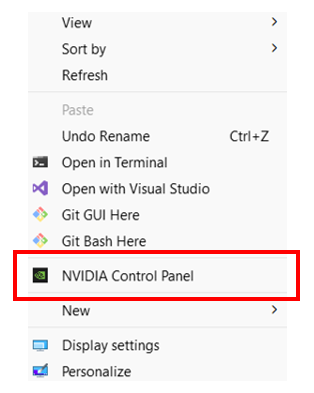
Figure B.3: Accessing NVIDIA Control Panel from the Desktop
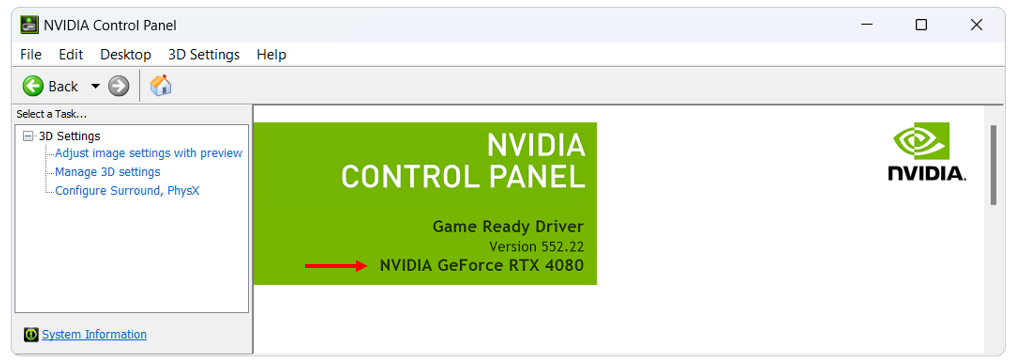
Figure B.4: NVIDIA GPU Model
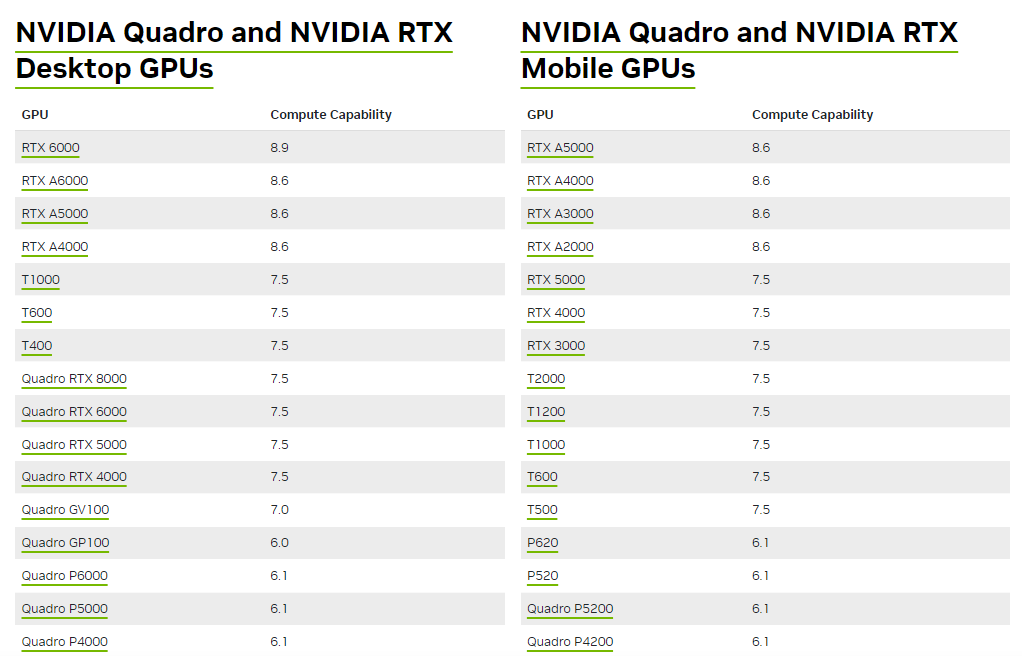
Figure B.5: Check the Website for your NVIDIA Card
More information on the card can be found in the “System Information” section, which is accessed from the NVIDIA Control Panel. The system information contains more details on the following:
- The number of CUDA cores.
- Frequency of the graphics, processors and memory.
- Available memory including dedicated graphics and shared memory.
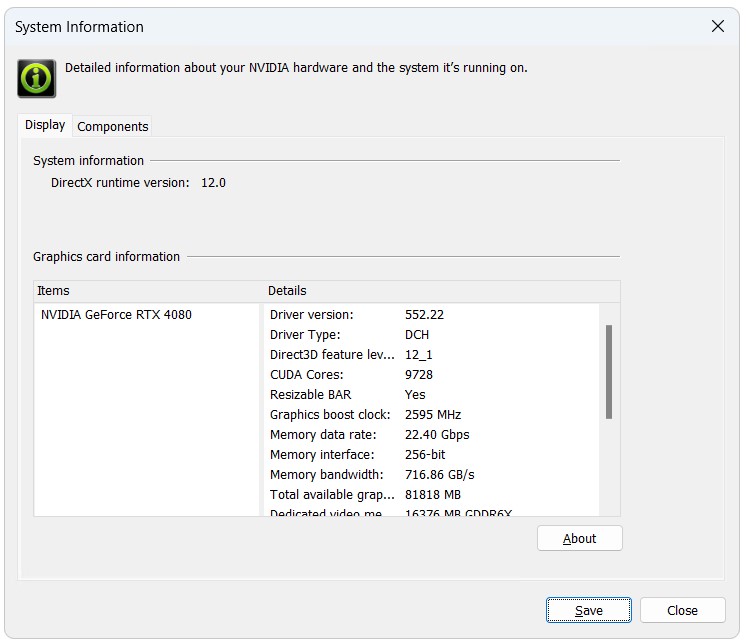
Figure B.6: NVIDIA System Information
Extensive GPU hardware benchmarking has been undertaken to support hardware selection for TUFLOW FV modelling. A range of hardware configurations has been evaluated to assess relative performance characteristics. The results are provided on the TUFLOW Wiki.
B.6.1.3 Updating NVIDIA Drivers
NVIDIA display drivers may require periodic updating, as drivers distributed with Windows operating systems may not represent the most recent release. Driver updates can be accessed through the NVIDIA Control Panel.
On Windows systems, driver update status can be checked using the following steps.
- Open the context menu on the Windows desktop.
- Select NVIDIA Control Panel or NVIDIA Display.
- Once the control panel has opened, select Help >> Updates from the menu.
- Follow the on screen prompts if updated drivers are available.
Additional guidance is provided on the Updating NVIDIA Drivers Wiki Page.
After installation of updated drivers, a system restart is required to ensure correct detection of the updated driver prior to execution of simulations.
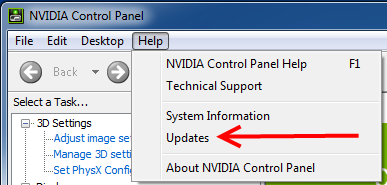
Figure B.7: Accessing Driver Updates from the NVIDIA Control Panel
B.6.1.4 Troubleshooting
The following error may occur during execution of a TUFLOW FV GPU simulation.
TUFLOW GPU: Error: Non-CUDA Success Code returned
Resolution steps are outlined below.
- Verify GPU compatibility and confirm that current NVIDIA drivers are installed. Refer to Section B.6.1.2.
- Execute the simulation using a user account with administrator privileges, which may be required for GPU computation access.
- Where multiple monitors are connected to the same graphics card, execution using a single monitor configuration may be tested.
If these steps do not resolve the issue, provide the NVIDIA system information described in Section B.6 together with the TUFLOW FV log file (.log) to support@tuflow.com.