10. Loading and Saving Configurations
The tool window's current settings can be saved to a configuration .json file or files (for multiple catchments), and previously saved configuration .json file(s) can be loaded back into the dock.
These configuration files are in the same format used by PyTUFLOW - see PyTUFLOW Integration.
10.1 Loading Configurations
One or more configuration .json files can be loaded into the tool using the  button at the top of the tool window. When clicked, a file dialog will open to select the file(s). The following behaviour differs depending on whether one file or multiple files are selected:
- For one file, it will be loaded in directly and the tool window will be populated with its settings.
- For multiple files, it will read the files and attempt to determine which one is the 'main' configuration. The 'main' configuration file will contain more then just the
siteinformation. If more then one file is deemed to be a 'main' configuration, a popup dialog will appear where the user can choose which one to use. If no files appear to be 'main', it will default to the first one. The 'main' file will be used to populate all settings in the tool window, apart from the catchment table. The catchment table will be populated with thesitesection of all the input files.
For both options, the tool will attempt to load in the catchment GIS layer(s), if provided.
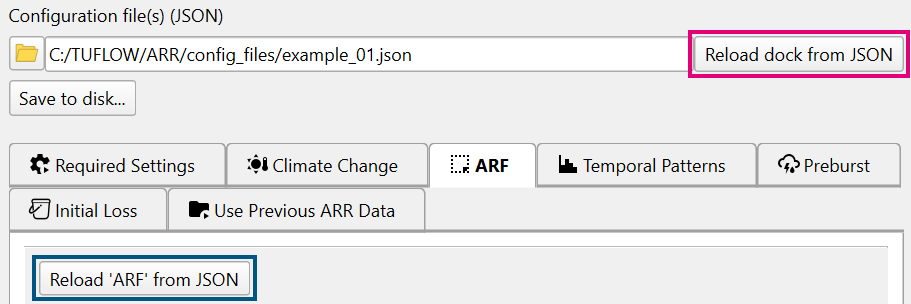
Once a configuration is loaded, the tool will be populated with all settings contained in the file(s). Any options that are not set in the configuration file(s) will be left as their default in the tool window. The user can then edit and change the inputs as required (see 10.2 section below for saving the changes). To reset the tool window to the loaded configuration, use the Reload dock from JSON button. This will reset all the settings in all the tabs. There are also individual reload buttons for each tab. When clicked, they reload only that tab. An example Reload 'ARF' from JSON button is shown in the image below.
Note
Loading a configuration file, or clicking any of the reload buttons will first clear the tool window (or tab, for tab-specific reload buttons) and then repopulate.
10.2 Saving Configurations
The tool window's current state can be saved as a configuration file or files (for multiple catchments). This is done by clicking the Save to disk... button at the top of the tool window. When clicked, a dialog will appear with further options for customising the save, depending on the number of catchments currently configured in the tool window:
-
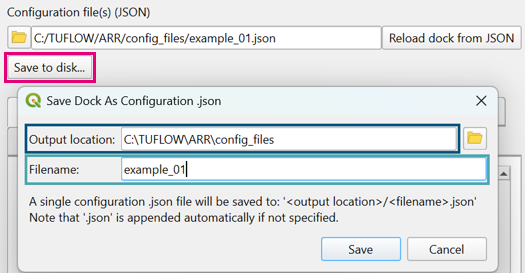
For one catchment, the following dialog will appear. The user can input an Output location and Filename, using the
file browser if needed. Note that if a configuration file was loaded in, the fields will be automatically populated with its location and filename. These can be adjusted as needed.
-
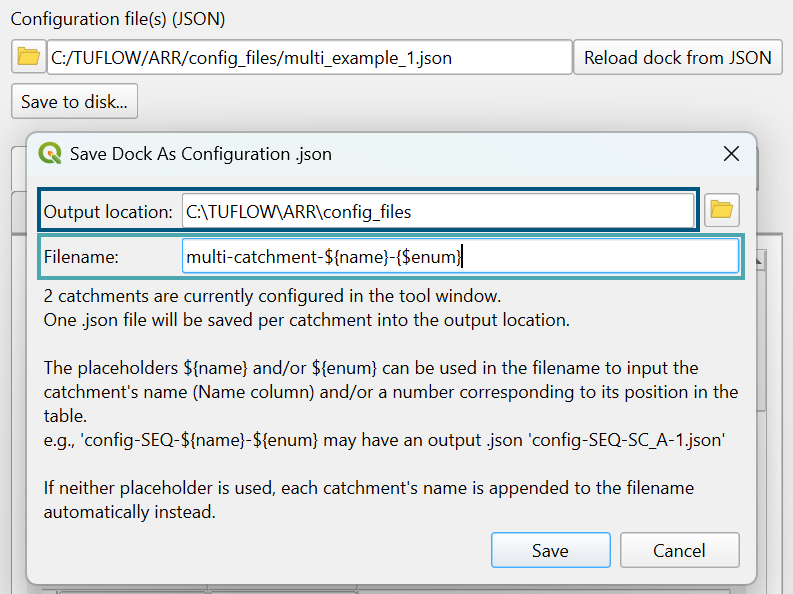
For multiple catchments, the following dialog will appear. The user can select a folder for the Output location and then specify an output Filename. By default, each catchment's name will be appended to Filename before saving. However, placeholders
${name}and/or${enum}are available to customise the output filename.${name}will be replaced with the catchment name and${enum}with a number corresponding to the catchments position in the input table. For example,config-SEQ-${name}-${enum}.jsonmay have an output name likeconfig-SEQ-SubCatchment_A-1.json.Note that if a configuration file was loaded in, the Output location and Filename will be automatically populated with its location and filename.