13.4 Running Simulations
13.4.1 Dongle Types and Setup
TUFLOW licences are distributed on one of three forms: via a WIBU Codemeter USB hardware lock dongle, a digital software lock licence or a cloud licence key. Licenses are available as either Local or Network types. Collectively, the full range of available hosting and licence type options includes:
Local or Standalone Licence (on a USB hardware lock dongle or digital software lock licence) – In this form, TUFLOW simulations can only be run on the computer hosting the licence container. The defined licence count limits the number of TUFLOW simulations that can be run simultaneously on that computer. For example, a Local 1 licence allows a single simulation to be run at a time on the machine. A Local 4 licence allows up to 4 concurrent simulations on the machine.
Network Licence on a USB hardware lock dongle or digital software lock licence – In this form, the licence container is hosted on a computer or server and other computers on the same network can access the available licences. The defined licence count limits the number of TUFLOW simulations that can be run in parallel across multiple computers. For example, a Network 5 licence allows up to 5 concurrent simulations, which could all be run on one computer, each on a different computer or any combination in between.
Network Cloud Licence – This licence type has the same functionality as the Network Licence described above, but the licence server is hosted on a WIBU cloud server managed by TUFLOW. There are two available configurations for a Network Cloud Licence.
- Cloud Direct Licence: All modelling computers link directly to the WIBU server over an internet connection.
- Cloud Server Licence: A company server acts as the licence host and connects to the WIBU server over an internet connection. Modelling computers then connect to the company server via the company’s network.
Please email sales@tuflow.com for a quote to purchase a TUFLOW licence.
Refer to the TUFLOW Wiki Licensing Page for further details regarding all of the above licencing options.
Note, TUFLOW transitioned to the WIBU licensing platform in 2010 as the previous provider, ‘Softlok’, did not support 64-bit systems. The older ‘Softlok’ dongles are no longer supported. If using TUFLOW versions prior to the 2010 release (2009-07, 2008-08, 2007-07 and 2006-06), the ‘DB’ release builds will need to be used to function with a WIBU Codemeter USB dongle hardware lock. The WIBU Codemeter digital software lock licence and cloud licencing were introduced in the 2016-03-AF release and are not available in earlier release versions.
13.4.1.1 Protocols for Accessing Dongles
If more than one type of dongle is available the protocols for taking and checking licences are:
- WIBU Codemeter licences are searched for, and if a licence is free it is taken.
- If no licence is available, you can optionally set for TUFLOW to continue to try and find an available WIBU dongle licence. This is achieved using the “C:\BMT\TUFLOW_Dongle_Settings.dcf” file described below. This is useful if there are no free licences and you wish to start a simulation (the simulation will start once a free licence becomes available).
- Once a simulation is under way, if the licence is lost, TUFLOW will try to regain a licence. For example, if a simulation is started using a local WIBU licence and that licence is disconnected, TUFLOW will search for another available licence to continue the simulation (see Section 13.4.1.1.1).
There are five varieties of licence type / vendor:
- BMT physical USB lock (dongle)
- BMT software lock (tied to a particular machine)
- Aquaveo (SMS) USB lock
- Jacobs (Flood Modeller) USB lock
- Jacobs (Flood Modeller) software lock
With numerous licencing options available, setting the preferred licence type can (slightly) speed the simulation start-up. The licence search order can be set via a licence control file “TUFLOW_licence_settings.lcf”, this replaces the TUFLOW_Dongle_Settings.dcf. Note that this file can occur in several locations. When looking for a licence setting file TUFLOW searches in the following locations:
- A “TUFLOW_licence_settings.lcf” in the same location as the TUFLOW executable.
On Windows, additionally:
2. A “TUFLOW_licence_settings.lcf” in a TUFLOW folder in the “ProgramData” environment variable location. By default this will resolve to C:\ProgramData\TUFLOW\TUFLOW_licence_settings.lcf. Entering %programdata% into the windows explorer path will take you to the location.
3. C:\BMT\TUFLOW_Licence_Settings.lcf
4. C:\BMT\TUFLOW_Dongle_Settings.dcf
If no licence settings files are found, TUFLOW defaults to the order listed above. WIBU Firm Code Search Order can be used to control the search order in the TUFLOW_licence_settings.lcf file.
Note: Use of C:\BMT\ above is supported on Windows for legacy reasons and is not recommended as read/write access to local drives is now often blocked for protection against hackers.
13.4.1.1.1 Licence Switching Options
TUFLOW supports licence switching between dongles of the same type, such as from one local WIBU dongle to another, or between network WIBU dongles. Switching between different licence types, for example from a WIBU dongle to a Softlok dongle, is not supported.
For example, if a local WIBU dongle is disconnected during a simulation, TUFLOW attempts to locate and use another local WIBU licence to continue the simulation. TUFLOW does not look for a network licence when switching between licence types. Similarly, when connectivity to a network licence is lost, it would not look for a local licence.
13.4.1.2 TUFLOW_Licence_Settings.lcf File
The TUFLOW Licence Settings (.lcf) file can be used to set WIBU settings, such as retry time interval and count. It has the same form and notation as a TUFLOW .tcf file.
This file is optional and if not found the settings below are the default:
In the above, the:
Simulations Log Folder sets the folder path or URL to a folder for logging all simulations. If the keywords “DO NOT USE” occur within the folder path or URL, this feature is disabled. Also see Simulations Log Folder.
WIBU Retry Time sets the interval in seconds for retrying to take a licence or regain a lost licence. The default is 60 and values less than 3 are set to 3.
WIBU Retry Count sets the number of times to retry for a licence at the start of a simulation. By default, if a licence is lost during the simulation, TUFLOW tries indefinitely to regain a licence so as not to lose the simulation.
WIBU Dongles Only if set to ON will force TUFLOW to only search for WIBU dongles.
13.4.1.3 Dongle Failure during a Simulation
If TUFLOW fails to recognise a network lock during a simulation (e.g. the network dongle server computer is down) it enters a holding pattern and continues trying until a license is found.
For local, standalone locks, TUFLOW prompts with a message that the lock could not be found. If it’s a USB lock try a different USB port, and press Enter to continue.
13.4.2 Starting a Simulation
A TUFLOW simulation can be initiated in multiple ways, however in each case the TUFLOW executable is started and the TUFLOW Control File (.tcf - see Section 4.1.5) is provided as the input argument. Additional command-line switches can also be specified to modify how the simulation runs. These switches are summarised in Table 13.1.
A TUFLOW simulation can be started in several ways, including:
- From a text editor
- For example, Notepad++
- For example, Notepad++
- Using a command-line script
- For example, a batch file on Windows or a Bash script on Linux
- From within GIS software:
- QGIS via the QGIS TUFLOW Plugin
- ArcMap via the use of the ArcTUFLOW toolbox - supported on Windows only
- MapInfo (through the MiTools add-on) - supported on Windows only
- QGIS via the QGIS TUFLOW Plugin
- From an interactive command-line session
- For example, the Command Prompt or PowerShell on Windows or a Terminal shell on Linux
- Via context menus (using the right mouse button) in a file explorer
- Via a runner such as the TUFLOW Runner or TRIM - supported on Windows only
This section focuses on initiating simulations via command-line scripts, as this is typically the simplest method for running several simulations. Further information on alternative methods is provided on the TUFLOW Wiki Running TUFLOW page. Information specific to running TUFLOW on Linux is provided in Section 13.4.2.4.
13.4.2.1 Script Examples and Run Options (Switches)
TUFLOW simulations are commonly started from a script file that executes one or more command lines.
- Windows: script files typically use the .bat extension and are executed by the Windows command interpreter.
- Linux: scripts are usually Bash scripts (typically text files with no extension) and must have executable permissions (e.g. using
chmod +x <filename>). When a bash script is primarily intended to be sourced (i.e. “. script.sh”), it will often have the file extension .sh, but this is not required.
Some commonly used switches are demonstrated in the examples below. A complete list of available command-line switches is provided in Table 13.1. Switches are supported on both Windows and Linux, unless noted otherwise.
Running a Single Simulation
The simplest script consists of a single command specifying the TUFLOW executable, followed by the .tcf file (Section 4.1.5):
<TUFLOW Executable> <TUFLOW Control File>Example on Windows (batch file):
"C:\Program Files\TUFLOW\TUFLOW 2026.0\TUFLOW_iSP_w64.exe" MR_H99_C25_Q100.tcfExample on Linux:
/opt/tuflow/tuflow-2026.0/bin/tuflow-isp MR_H99_C25_Q100.tcfNote: the locations in these examples show where TUFLOW will be installed for all users when using the .msi installer on Windows, or the .deb or .rpm packages on Linux. A ‘portable’ copy of TUFLOW can be downloaded in .zip format for Windows, and .tar.gz for Linux, similar to previous distributions of TUFLOW.
Running Multiple Simulations
Multiple simulations can be executed sequentially by listing several commands in the script.
Example on Windows (batch file):
"C:\Program Files\TUFLOW\TUFLOW 2026.0\TUFLOW_iSP_w64.exe" -b MR_H99_C25_Q100.tcf
"C:\Program Files\TUFLOW\TUFLOW 2026.0\TUFLOW_iSP_w64.exe" -b MR_H99_C25_Q050.tcf
"C:\Program Files\TUFLOW\TUFLOW 2026.0\TUFLOW_iSP_w64.exe" -b MR_H99_C25_Q020.tcf
pause
The -b (batch) switch (Table 13.1) suppresses prompts that would otherwise pause execution at the end of a simulation. This ensures that one simulation proceeds on to the next without any need for user input. In Windows scripts, the pause command prevents the Console window from closing automatically after completion of the last simulation so the simulation status can be reviewed.
Testing Model Inputs
The -t (test) switch (Table 13.1) processes the model inputs but does not run the simulation. This is very useful for checking that data and file references are valid before performing the full simulation. The -t switch runs TUFLOW until just before the hydrodynamic computations begin. Any input errors or warnings will be reported.
Example on Windows (batch file):
"C:\Program Files\TUFLOW\TUFLOW 2026.0\TUFLOW_iSP_w64.exe" -b -t MR_H99_C25_Q100.tcf Running Without a Licence
Since the 2018-03-AA TUFLOW release, the -t (test) switch can be used without a TUFLOW licence, by specifying the -nlc (no licence check) switch (Table 13.1).
Example on Windows (batch file):
"C:\Program Files\TUFLOW\TUFLOW 2026.0\TUFLOW_iSP_w64.exe" -b -t -nlc MR_H99_C25_Q020.tcfNote that when the -nlc switch is used, no diagnostics are reported. As such this switch should not be used whilst a model is being developed or built.
Executing the Simulation
Once the model inputs have been verified, the simulation can be executed by removing the -t switch (and the -nlc switch, if used) or replacing it with the -x (execute) switch (Table 13.1). The -x switch is optional because execution is default behaviour, but it is often included to make it easier to switch between test (-t) and execution (-x) modes when editing scripts.
Example on Windows (batch file):
"C:\Program Files\TUFLOW\TUFLOW 2026.0\TUFLOW_iSP_w64.exe" -b -x MR_H99_C25_Q100.tcf Switch Prefixes
It is recommended that command-line switches be prefixed by “-” (short dash or hyphen/minus sign) and this is the only option when using TUFLOW on Linux. As such, when switches are mentioned in this manual, they will be prefixed with “-” (e.g. -b).
Note that on Windows the following are also accepted and are treated as equivalent:
- “–” (long dash)
- “/” (forward slash)
When copying from word documentation or emails, the hyphen may be automatically replaced with a long dash. This may be difficult to spot in a text editor, particularly if using a fixed width font.
| Switch | Description |
|---|---|
| -acf |
Automatically create folders (the default). The default setting which automatically creates missing folders, preventing dialog prompts when non-existent folders (e.g. results folders) are encountered. If a folder cannot be created, a dialog will appear. See -qcf switch to disable this. |
| -b | Batch mode. Used when running multiple simulations in succession from a script (see Section 13.4.2.1). Suppresses the “TUFLOW simulation has finished” dialogue and/or any prompt to press Enter, allowing the script to continue to the next simulation. |
|
-c Optional additional flags of “a” , “l”, “p” or “ncf”. |
Copy. Creates a copy of a TUFLOW model for transfer or archiving (also see the -pm switch as an alternative). By default, -c copies only the files read by TUFLOW. For MapInfo users, only the .mif and .mid files are copied (see “a” flag below). The copy is created in a folder named <tcf_name>.tcf_copy (or <tcf_name>.tcf_copy_all if “a” flag is used) in the same directory as the .tcf. This folder will contain all input files (including the full folder structure). Optional flags (can be combined with -c in any order):
Notes:
|
| -cs<level> |
Case sensitivity. Controls case sensitivity of file paths when running TUFLOW on Linux. This switch can be useful for models developed on Windows. The case sensitivity can be set to one of the following levels:
For example: /opt/tuflow/tuflow-2026.0/bin/tuflow-isp -cs2 ./runs/EG00_001.tcf
|
|
-e<name> -e{1-9}<name> |
Event. Specifies an event name to be used by
For example: <tuflow_executable> -e1 05AEP -e2 01h example.tcf
|
| -et<time_in_hours> |
End time. Specifies the simulation end time (in hours). This will override the |
| -nc |
No console. Suppresses (hides) the console window (Section 14.1) during a simulation. The simulation runs in the background and remains visible in the System Monitor (e.g. Task Manager).
It is strongly recommended to redirect console output to a text file. For example:
When the -nc switch is used, TUFLOW runs without requiring user input (e.g. invalid or missing .tcf files will terminate the simulation with an error rather than prompting. This feature was introduced in the 2018-03-AB TUFLOW release. Note: The -nc switch serves no purpose when running on Linux. |
| -nlc |
No licence check. Disables the licence check, allowing the -c (copy) or -t (test) options to run without a TUFLOW licence. No diagnostic output is generated (e.g. messages layer) is generated when running without a licence. Remove -nlc if diagnostics are required. |
| -nmb |
No message boxes. Suppress use of message boxes to prompt the user. All prompts will be via the console window. Note: The -nmb switch serves no purpose when running on Linux. |
| -nq |
No queries. Suppresses the termination dialog when stopping a simulation with Ctrl+C. The simulation will terminate immediately without prompting. Note: The -nq switch serves no purpose when running on Linux. |
| -nt<number_of_threads> | Number threads. Sets the number of CPU threads (cores) to use for a TUFLOW HPC simulation. The number of threads requested is limited to the number of CPU cores available on the machine, and the available TUFLOW Thread licences. For example, -nt2 would run using two CPU threads. |
| -nua | No Ulimit Adjustment. Linux only, do not modify the ulimit values. Without this option, if the soft limit is lower than the hard limit, the soft limit is increased to the hard limit. |
| -nwk | Network. Force TUFLOW to search for a network licence (i.e. skip the search for a local licence). |
| -od<drive> |
Output drive. Set the Output Drive for a simulation. For example, -odC will redirect all outputs to the C:\ drive. Note: The -od switch serves no purpose when running on Linux. |
| -oz<name> |
Output zone. Specifies one or more output zones to be included in the model. Serves the same purpose as the .tcf command: |
|
-pm Optional additional flags of “all” , “l” or “ini”. |
Package model. Packages a model by copying all input files for all events and scenarios. By default, the destination folder is named pm_<tcf_name> and is located in the same folder as the .tcf. This can be overridden using a .ini file. Unlike the -c switch, no data processing occurs during the copy, making it is substantially faster, but does not check for valid inputs. This switch does not require a TUFLOW licence. Optional flags (can be combined in any order):
Three switches are available for handling the binary processed files (xf files) created by TUFLOW. These must be used in conjunction with the -pm switch.
For example: <tuflow_executable> -pm -xf0 example_~s1~_~e1~_~e2~_001.tcf
|
| -pu<id> |
Processing units. Selects the processing unit(s) for the simulation. This switch only applies to the HPC GPU solver.
|
| -qcf |
Query creation folder. Set the create folder query dialog to appear, rather than the default functionality where TUFLOW automatically creates folders (see the -acf switch above). Note: The -qcf switch serves no purpose when running on Linux. |
|
-s<name> -s{1-9}<name> |
Scenario. Specifies one or more scenario names for use with
For example: <tuflow_executable> -s1 GPU -s2 opA example.tcf
|
| -slp |
Simulation log path. A legacy option for Softlok (blue) dongles to set the path to a folder on the intranet to log all simulations initiated from the lock. Refer to the 2018 manual or earlier for details. (See Section 13.4.1.2 for equivalent option for WIBU Codemeter licences, and also |
| -st<time_in_hours> |
Start time. Specifies the simulation start time (in hours). This will override the |
| -t | Test input only. Processes all input data including writing of check files, but does not start the simulation. Useful for checking that the simulation initialises without error, prior to carrying out the simulation. |
| -wibu | Search for a WIBU Codemeter licence only. |
| -x | eXecute the simulation (the default). |
13.4.2.2 Copy/Package Model from Script Files
TUFLOW can be run in copy mode (-c) to create a duplicate of a model for archiving or transfer. The -c switch copies the input files used by a simulation (for a single set of events/scenarios). This performs a model initialisation, including error checking. The -nlc (no licence check) switch may be used to perform this operation without a licence. Alternatively, the -pm (package model) switch copies all input files for all events and scenarios defined in the model. More information on these switches can be found in Table 13.1 above.
Further details can be found on the TUFLOW Wiki.
13.4.2.3 Advanced Script Files
Scripts can be made more flexible by using variables and control logic.
The example below defines a variable containing the path to the TUFLOW executable. The advantage of this is that if the path to the executable changes or if a different version needs to be used, only one location needs to be changed.
Example (Windows .bat):
set TUFLOWEXE="C:\Program Files\TUFLOW\TUFLOW 2026.0\TUFLOW_iSP_w64.exe"
set RUN=start "TUFLOW" "%TUFLOWEXE%" -b
%RUN% MR_H99_C25_Q100.tcf
%RUN% MR_H99_C25_Q050.tcf
%RUN% MR_H99_C25_Q020.tcf
Scripts may also include loops or other control logic to automate the execution of multiple events or scenarios. An example for Windows (.bat) is provided below. For further examples of running multiple events and scenarios from the same .tcf file, see Sections 13.2.1 and 13.2.2.
Example (Windows .bat):
REM This sets the variables as local, another batch file can use the same variables
SetLocal
REM Set up variables
set TUFLOWEXE="C:\Program Files\TUFLOW\TUFLOW 2026.0\TUFLOW_iSP_w64.exe"
set RUN=start "TUFLOW" "%TUFLOWEXE%" -b
set A=Q010 Q020 Q050 Q100 Q200
set B=10min 30min 60min 120min 270min
REM Loop through each simulation
FOR %%a in (%A%) do (
    FOR %%b in (%B%) DO (
        %RUN% -e1 %%a -e2 %%b filename_~e1~_~e2~.tcf
    )
)
pause
Further guidance on advanced batch files, including looping examples can be found on the TUFLOW Wiki Run TUFLOW from a Batch File page.
13.4.2.4 Running TUFLOW on Linux
Since the 2026.0.0 release, TUFLOW Classic/HPC is available for Linux systems. Installation instructions, system requirements and further information is provided on the TUFLOW Wiki page: TUFLOW on Linux.
An example execution of TUFLOW from the command line is provided below. The exact command used will depend on the installation location, executable selected, model location and any command line options applied.
/opt/tuflow/tuflow-2026.0/bin/tuflow-isp -cs1 ./runs/EG00_001.tcfThis example runs the TUFLOW example model EG00_001.tcf with single precision and case sensitivity (-cs<level>) enabled. See Table 13.1 for further details on available command line switches.
Note that TUFLOW on Linux will automatically interpret backslashes as forward slashes when processing file paths referenced in the control files.
13.4.3 Running TUFLOW HPC
The front end of TUFLOW Classic and TUFLOW HPC are identical. No modification of the model input is needed to utilise the TUFLOW HPC solver (in CPU or GPU compute mode). Similarly, the output data is written by TUFLOW in the same output formats and data types irrespective of whether Classic or HPC solvers are used.
The .tcf Solution Scheme command is used to switch the solution scheme from TUFLOW Classic (the default) to TUFLOW HPC.
Hardware is used to access GPU hardware (CPU is the default). As such, to convert a model from TUFLOW Classic to TUFLOW HPC and run using GPU hardware only requires two additional TCF commands in most cases:
With TUFLOW HPC it is possible to use multi-GPU cards to split the simulation across multiple cards to reduce run times or access more GPU memory. This is carried out either by using the GPU Device IDs command or with the processing unit command line switch “-pu
TUFLOW HPC simulations are started in the same manner as a standard TUFLOW simulation and explained in Section 13.4.2.
13.4.3.1 TUFLOW HPC and GPU Module Commands
The following .tcf commands (apart from Timestep) are commands specific to the TUFLOW HPC solver:
| Command | Description |
|---|---|
| Control Number Factor | The default HPC Courant, shallow wave celerity and diffusion control number limits can be reduced to effectively underclock the simulation. Using the above command factors all three control numbers. For example, a value of 0.8 reduces the default limits by 20%. Reducing the control number limits may be useful if the simulation is exhibiting erratic behaviour or numerical “noise”, although testing has found this is rare in real-world models, and if occurring is more likely to be a sign of poor data or poor model schematisation. |
| Hardware |
TUFLOW HPC can be run using CPU or GPU hardware. This command defines the hardware to be used for the compute. CPU is the default and will run a simulation using the Central Processing Unit (CPU). GPU will run the simulation using the Graphics Processor Unit (GPU). When running TUFLOW HPC using the GPU hardware module, the pre (reading of data) and post processing (writing outputs) is managed by the standard TUFLOW CPU engine. This allows the user to utilise the extensive range of GIS input functionality available in TUFLOW. Simulation using GPU hardware requires the GPU Hardware Module in addition to a standard TUFLOW licence. |
| HPC DP Check |
TUFLOW HPC is available in both single precision and double precision. If the simulation is started with the single precision version of TUFLOW, the HPC solver will utilise a single precision version. If the simulation is started with the double precision version of TUFLOW, CHECK 2420 will be output by default stating that the single precision version should be used. The calculation method in TUFLOW HPC uses depth due to its explicit nature, unlike TUFLOW Classic that uses water level due to its implicit scheme. This means that precision issues when using the Classic solver, such as when applying a very small rainfall to a high elevation, are not applicable in HPC. For more information see Section 13.3.2.2. Unless testing shows that single and double precision produce significantly different results, use the single precision version of TUFLOW for all TUFLOW HPC simulations. Note: Double precision solutions on GPU cards can be four times slower than single precision! Also, NVIDIA Cards with a compute capability of 1.2 or less are only able to run single precision versions. The HPC DP Check command allows the user to disable this check should double precision be required, or increase it to an ERROR. |
| HPC Temporal Scheme |
Sets the order of the temporal solution. The default is the recommended 4th order temporal solution, and this command is usually not specified. We recommend the use of the 4th order temporal scheme as it is unconditionally stable with adaptive timestepping turned on and has been found to give accurate results and is results are not affected due to changing the timestepping. Lower order schemes save a little on memory requirements but are more prone to instability and in some cases unreliable results that are sensitive to the timestepping intervals. |
| GPU Device IDs | Controls the GPU device or devices to be used for the simulation if multiple CUDA enabled GPU cards are available in the computer or on the GPU itself. |
| Solution Scheme | This command is used to select the desired solution scheme for the compute. Use “HPC” to call TUFLOW HPC’s finite volume 2nd order solver (recommended over the 1st order alternative). |
| Timestep |
If adaptive timestepping is active (the default), the timestep value is only used for the very first step. To allow the same command to be used for either a TUFLOW Classic or a HPC simulation the timestep value is divided by 10 for the initial HPC timestep, and enter a timestep value similar to that that you would use for TUFLOW Classic. If adaptive timestepping is off, sets the fixed timestep. The timestep will always be much smaller than TUFLOW Classic’s timesteps as the scheme is explicit (TUFLOW uses an implicit scheme). As a general rule of thumb specify a timestep that is around one tenth of the TUFLOW Classic timestep you would use. |
13.4.3.2 Compatible Graphics Cards
TUFLOW HPC’s GPU hardware module requires an NVIDIA CUDA enabled GPU card. A list of CUDA enabled GPUs can be found on the following website: https://developer.nvidia.com/cuda/gpus.
To check if your computer has an NVIDIA GPU and if it is CUDA enabled:
- Right click on the Windows desktop.
- If you see “NVIDIA Control Panel” or “NVIDIA Display” in the pop-up dialogue, the computer has an NVIDIA GPU.
- Click on “NVIDIA Control Panel” or “NVIDIA Display” in the pop-up dialogue.
- The GPU model should be displayed in the graphics card information.
- Check to see if the graphics card is listed on the following website: https://developer.nvidia.com/cuda/gpus.
The following screen images show the steps outlined above, this may vary slightly between NVIDIA GPU card models.
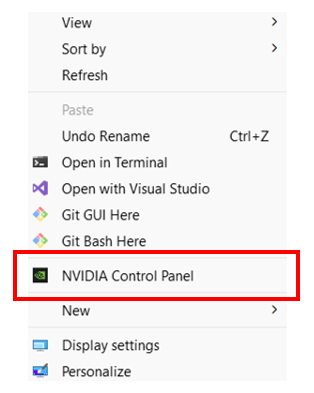
Figure 13.1: Accessing NVIDIA Control Panel from the Desktop
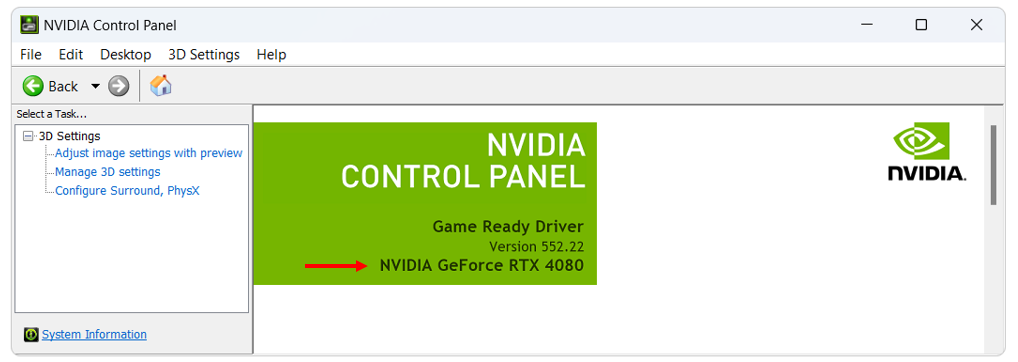
Figure 13.2: NVIDIA GPU Model
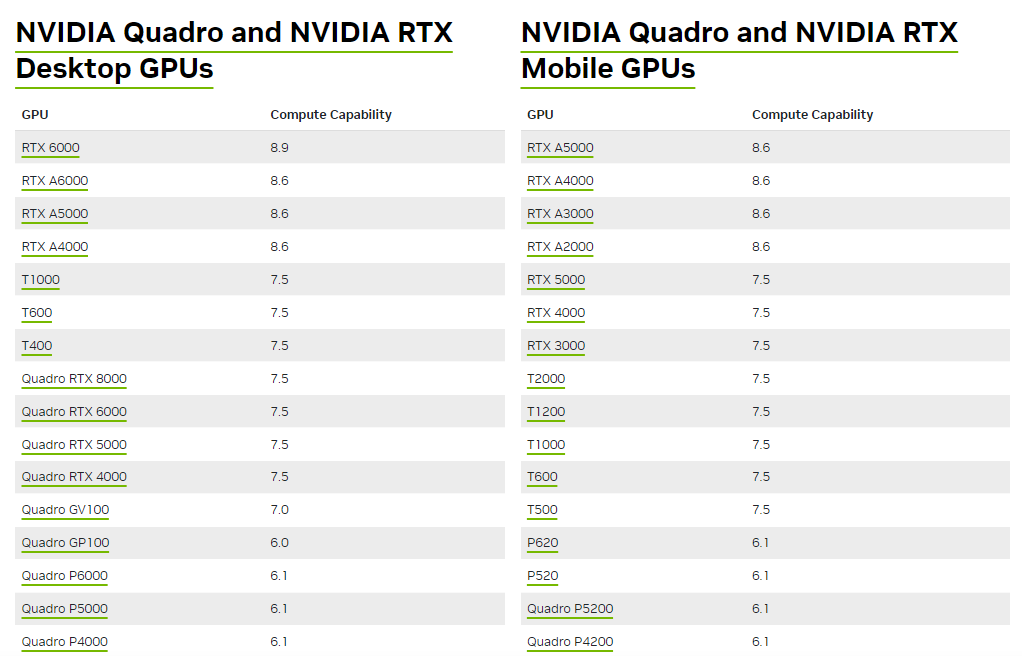
Figure 13.3: Check the Website for your NVIDIA Card
More information on the card can be found in the “System Information” section, which is accessed from the NVIDIA Control Panel. The system information contains more details on the following:
- The number of CUDA cores.
- Frequency of the graphics, processors and memory.
- Available memory including dedicated graphics and shared memory.
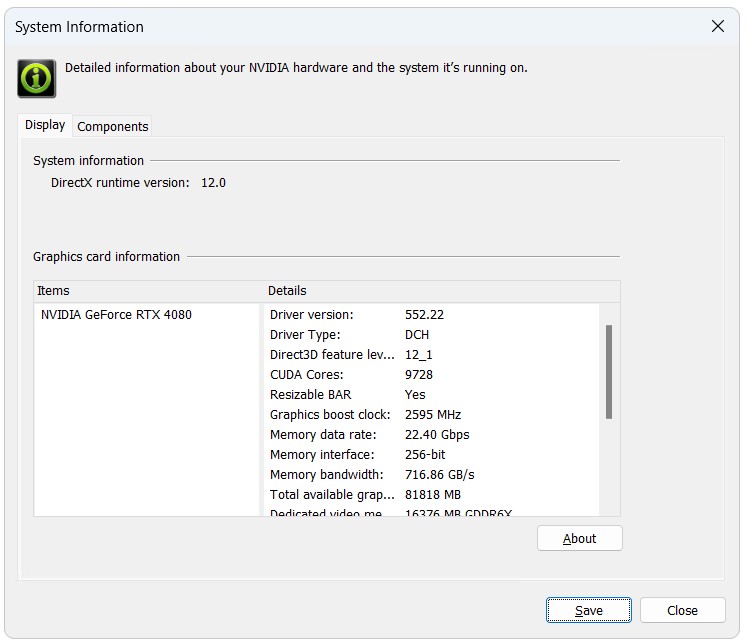
Figure 13.4: NVIDIA System Information
On both Windows and Linux, the command line utility nvidia-smi can be executed when NVIDIA drivers have been installed. This lists the exact models of GPUs installed, and provides many options for requesting technical details of installed hardware, which can be queried with nvidia-smi --help.
On the NVIDIA website, each CUDA enabled graphics card has a “Compute Capability” listed. For cards with a compute capability of 1.2 or less, only the single precision version of the GPU Module can be utilised. However, benchmarking has indicated that the double precision version, except in rare situations, is NOT required and that for nearly all GPU simulations, TUFLOW_iSP engine versions should suffice. Refer to Section 13.3.2.
Extensive GPU hardware benchmarking has been undertaken to assist users who are upgrading hardware for TUFLOW modelling, with numerous hardware options tested for their speed performance. The results are provided on the TUFLOW Wiki Hardware Benchmarking page.
13.4.3.3 Updating NVIDIA Drivers
It is recommended to use recent and stable versions of the NVIDIA driers for your hardware and operating, as drivers shipped with the operating systems are frequently out of date. To update on Windows, open the NVIDIA Control Panel (by right clicking on the desktop and selecting NVIDIA Control Panel or NVIDIA Display). Once the control panel has loaded, select Help >> Updates from the menu items. For further guidance see the TUFLOW Wiki Updating NVIDIA Drivers Wiki Page page.
If new drivers are available, please download and install these by following the prompts.
NOTE: Even if not prompted by the system, a restart is recommended to ensure the new drivers are correctly detected prior to running any simulations.
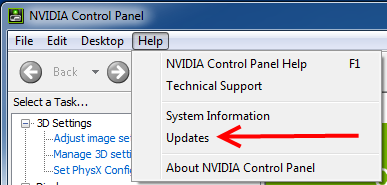
Figure 13.5: Accessing Driver Updates from the NVIDIA Control Panel
13.4.3.4 NVLink – Multi-GPU Performance (HPC Only)
NVLink is a connection (cable) for NVIDIA GPU devices providing peer-to-peer (direct) access between GPUs, rather than having to communicate via the CPU, giving faster communication. For example, data transfer rate for the RTX 2080 Ti is 32GB/s on the CPU PCIe and 100 GB/s via an NVLink. The TUFLOW 2020-01 and later releases automatically recognises and utilises any peer-to-peer (p2p) access between GPUs that is possible according to the hardware setup. Peer-to-peer access typically requires an NVLink connector between GPUs, or in some cases peer-to-peer access can occur via the PCI bus if all cards are placed into TCC driver mode.
Whilst testing thus far has not produced a huge jump in performance, it is expected greater gains in the future will arise as it is increasingly possible to connect to large numbers of GPU devices, especially Cloud-based instances. The user can choose to disable peer-to-peer GPU access by specifying the .tcf command:
GPU Peer to Peer Access
13.4.3.5 Troubleshooting
If you receive the following error when trying to run the TUFLOW GPU model:
TUFLOW GPU: Error: Non-CUDA Success Code returned
Please try the following steps:
- Check the compatibility of your GPU card and whether the latest drivers are installed (see instructions in Section 13.4.3.2).
- Test with a user account that has administrator privileges as these may be required for running computations on the GPU.
- If multiple monitors are running from the video card, try running with only a single monitor.
If the above steps fail to get the simulation to run, please email the NVIDIA system information (see Section 13.4) and TUFLOW log file (.tlf) to support@tuflow.com.
13.4.4 Running TUFLOW 1D Only Simulations
TUFLOW is set up to run as either a 2D model or as a 1D/2D model. It is, however, possible to run a TUFLOW 1D only model by including a small ‘dummy’ 2D domain within the model files. The 2D domain can be set up with the .tgc file and can be small, contain few cells of uniform material type and elevation values. The .tbc file will be set up so that the 2D domain does not receive any flows and will not impact simulation runtimes. The 1D model can then be constructed within the .ecf and the simulation set up within the .tcf as per usual. An example model exists on the TUFLOW User Gitlab Page.