| Software Type | Suggested Software |
|---|---|
Text Editor |
UltraEdit / TUFLOW FV Wiki UltraEdit Tips Notepad++ / TUFLOW FV Wiki Notepad++ Tips Visual Studio Code / TUFLOW FV Wiki Visual Studio Code Tips Other: Any text editor can be used for creating TUFLOW control files, including the Microsoft Windows default, Notepad. However, the above listed editors are recommended. They allow for advanced options, such as syntax highlighting of TUFLOW control files and launching TUFLOW simulations from the text editor. |
Spreadsheet Software |
|
GIS Platforms |
QGIS (TUFLOW Wiki QGIS Tips) with QGIS TUFLOW Plugin. The QGIS TUFLOW Plugin provides a range of pre- and post- processing tools and dynamic viewing of 1D and 2D results in TUFLOW Viewer. ArcGIS Pro (TUFLOW Wiki ArcGIS Tips) with Spatial Analyst for the creation of model inputs and viewing of static results. Dynamic viewing of 1D and 2D results is not available in ArcGIS. MapInfo Professional (TUFLOW Wiki MapInfo Tips) for the creation of model inputs and viewing of static results. Dynamic viewing of 1D and 2D results is not available in ArcGIS or MapInfo. QGIS (TUFLOW Wiki QGIS Tips), SMS (TUFLOW Wiki SMS Tips) or WaterRIDE are recommended to address these limitations. |
Mesh Generators |
|
Other Software |
3 Getting Started
3.1 How to Build A Model
TUFLOW FV provides a range of self education resources to support users learning the software. Available resources include online tutorials, example models, demonstration models and eLearning modules. All models supplied with, or developed as part of, these self education resources are designed to operate in licence free mode. A software licence is therefore not required for learning or evaluation purposes.
All TUFLOW FV self education resources are supported through the TUFLOW Support Services. Technical queries arising during use of these resources may be directed to support@tuflow.com.
As an alternative to self directed learning, structured training is available under the guidance of TUFLOW specialists. Paid online and in person training courses are offered for users requiring formal instruction. Further information on training options is available by contacting training@tuflow.com.
It is strongly recommended that these resources be accessed and used in conjunction with this manual when constructing TUFLOW FV simulations.
3.1.1 Tutorial Models
A number of free Tutorial Models are available for download and are documented in the TUFLOW FV Tutorial Introduction Wiki Page. Current tutorials include:
- Module 1 - Trapezoidal Channel
- Module 2 - Riverine Channel
- Module 3 - Coastal Application
- Module 4 - Floodplain Application
- Module 5 - 3D Estuary Application
- Module 6 - Particle Tracking
- Module 7 - Sediment Transport
- Module 8 - SWAN GIS Tools
- Module 9 - Water Quality
The tutorial series introduces foundational concepts and progressively increases in complexity. Completion is intended to follow a sequential workflow, from Tutorial 1 through Tutorial 9.
Development of the tutorials is based on QGIS as the model construction environment.
3.1.2 Example Models
Free example models are documented and available for download via the TUFLOW FV Wiki. The example model dataset includes more than 50 standalone models demonstrating commonly used TUFLOW FV features. This resource is intended for experienced modellers seeking to further develop their skills following completion of the Tutorial Models. Unlike the tutorials, the example model dataset does not include step by step instructions.
Use of the example models assumes a basic working knowledge of TUFLOW FV and familiarity with opening and reviewing model configurations by referencing the associated TUFLOW FV Control Files (FVCs) listed in the example model catalogue on the TUFLOW FV Wiki.
3.1.3 Licence Free Demo Mode
Setting Demo Model == ON within the .fvc file enables licence-free execution of TUFLOW FV for small scale test models using user supplied datasets.
The licence free demo mode is subject to the following limitations:
- The total number of two dimensional cells must not exceed 5,000.
- The total number of one dimensional channels must not exceed 100.
- Only a single two dimensional domain is permitted.
- Simulation wall clock time is limited to 10 minutes.
- Restart files are not supported.
3.1.4 Instructor Led TUFLOW Training Courses
Structured training is available under the guidance of TUFLOW specialists. Paid online and in person training courses are offered for users requiring formal instruction. Further information on available training options may be obtained by contacting training@tuflow.com.
3.1.5 Webinars
The TUFLOW team run regular educational webinars online that aim to teach modellers, TUFLOW or otherwise, the fundamentals of hydraulic modelling. The webinars are free to watch live and can be viewed afterwards at no cost. Visit the TUFLOW Website Webinar Page to register for upcoming events, or to watch recordings of past webinars.
3.2 The TUFLOW Modelling Concept
The core software required to construct TUFLOW models and review simulation results includes the following components:
- Text editor. Used to create and edit TUFLOW simulation control files, which define simulation commands and reference associated GIS and tabular datasets.
- Spreadsheet software. Used to prepare and manage time series data and other non spatial inputs.
- GIS software. Used to create, modify and manage geographically referenced model inputs and to visualise simulation results.
- Mesh generator. Used to generate the computational flexible mesh topology.
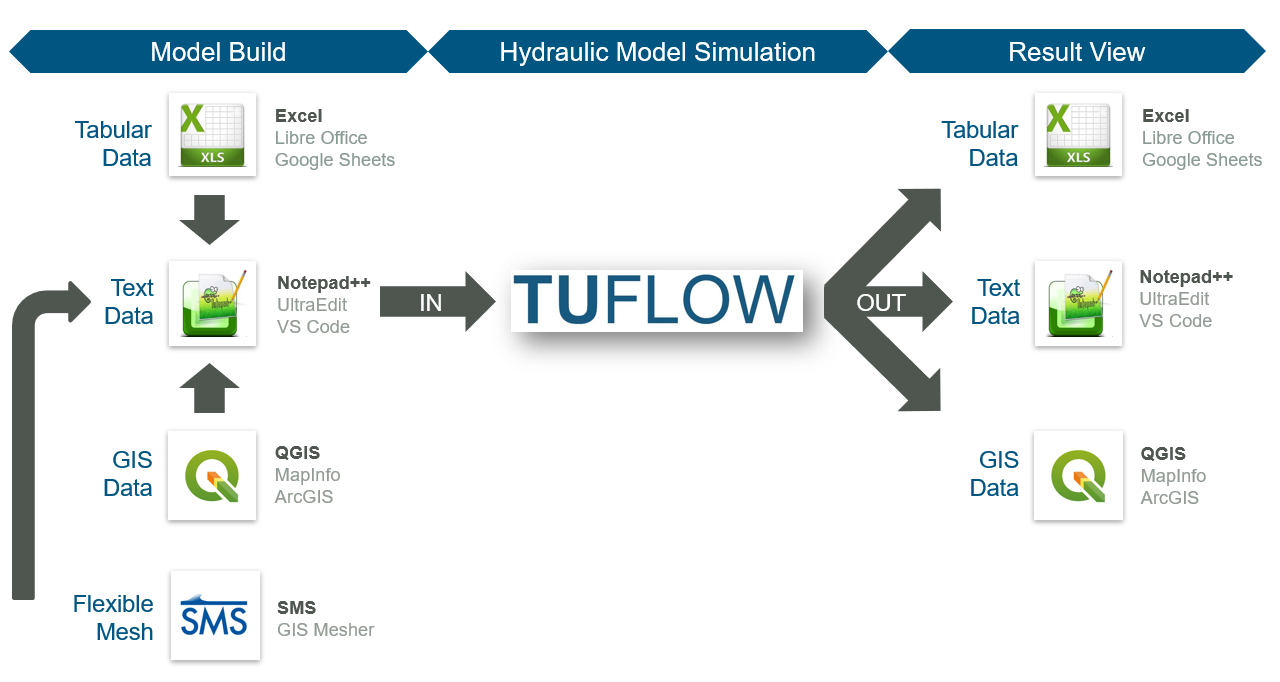
A commonly used supporting software combination includes Notepad++, Excel, QGIS (with the free QGIS TUFLOW Plugin) and SMS. Information on these packages is provided in Section 3.2.1, Section 3.2.2 and Section 3.2.3. Use of these specific software packages is not mandatory. Alternative text editors, spreadsheet software, GIS platforms and mesh generation tools may be used as appropriate. A summary of commonly used supporting software options is provided in Table 3.1.
3.2.1 Notepad++
Notepad++ is a free text editor available from https://notepad-plus-plus.org/downloads/. Its functionality makes it suitable for creating and maintaining TUFLOW FV control files. Key features relevant to TUFLOW FV model development include the following:
- Syntax Highlighting: Colour coding of TUFLOW control files to improve readability.
- Simulation Execution: Support for launching TUFLOW FV simulations directly from the editor.
- File Navigation: Support for opening files using relative paths defined within TUFLOW control files. For example, a water quality control file (
.fvwq) may be opened directly from a TUFLOW FV control file (.fvc) without manual file system navigation.
3.2.2 QGIS / TUFLOW Viewer
QGIS is a free, open-source geographic information system available from https://www.qgis.org/. It is an official project of the Open Source Geospatial Foundation (OSGeo). QGIS runs on Linux, Unix, macOS, Windows and Android, and supports a wide range of vector, raster and database formats and associated geospatial functionality.
An introductory eLearning module is available for users adopting QGIS as a model development or results visualisation environment. The Introduction to QGIS for TUFLOW eLearning covers configuration of QGIS for TUFLOW modelling and provides an entry level overview of relevant software functionality.
The free QGIS TUFLOW Plugin extends QGIS with tools designed to support TUFLOW modelling workflows. Installation and usage instructions are provided in the QGIS Tips and Tricks section of the TUFLOW Wiki.
The TUFLOW Viewer is included as part of the QGIS TUFLOW Plugin. It extends the QGIS map window to provide interactive visualisation of TUFLOW simulation results, including dynamic result interrogation and time varying displays. For further information, refer to the TUFLOW Viewer Documentation.
3.2.3 Aquaveo SMS Mesh Generator / TUFLOW FV Graphical User Interface
The Aquaveo Website, the SMS Wiki, the Aquaveo Learning Centre and the TUFLOW FV Wiki SMS Tips provide information regarding this product.
SMS variants are available for use with TUFLOW FV:
- SMS Community Edition: Sufficient for TUFLOW FV model construction. A free edition suitable for mesh generation and result visualisation. This edition is used for the TUFLOW FV Wiki Tutorial Models.
- SMS Riverine Pro Version: A licensed edition suitable for advanced TUFLOW FV mesh generation, result visualisation and analysis.
3.3 Installing and Running TUFLOW
3.3.1 TUFLOW FV Downloads and Installation
TUFLOW FV uses an installer for Release 2026.0.0 onwards, which is available via the TUFLOW website Downloads page. Past TUFLOW FV versions (that do not use an installer) are available from the Downloads Archive.
3.3.2 Licensing
A TUFLOW FV licence is required to execute TUFLOW FV simulations. A licence is not required for use of third party software components such as GIS platforms, text editors or graphical user interfaces. Further information on licensing is provided in the installation instructions on the TUFLOW FV Wiki.
TUFLOW FV licences are hosted using either hardware based locks (for example, USB dongles) or software based locks (for example, licence configuration files associated with a specific computer, server or cloud virtual machine). Enquiries regarding licence purchase and pricing should be directed to sales@tuflow.com.
TUFLOW FV may be run without a licence when completing the TUFLOW FV tutorials, using the example models or when operating in Demo Mode (refer to Section 3.1.3).
3.3.3 Performing Simulations
TUFLOW FV simulations are initiated by executing the TUFLOW executable and passing a TUFLOW FV control file (.fvc) as input. Several methods are available for starting simulations:
- Running a batch file. Batch files may be used to run individual simulations or to automate multiple runs by looping over events and scenarios, or by distributing simulations across multiple processors.
- Running from a text editor. This method is commonly used for single simulations during model development.
- Running directly from GIS software.
- Running via Microsoft Windows Explorer using a right click execution option.
- Running through a graphical user interface, such as the SMS TUFLOW FV Interface.
- Running from a command (console) window.
Detailed descriptions of these execution methods are provided on the TUFLOW FV Wiki.
3.3.3.1 Parallelisation
Simulations executed on CPU run in parallel thread mode by default. In this mode, tasks are split and processed in parallel across multiple logical CPU processors using the OpenMP shared memory model. The maximum number of threads for a given simulation is limited to the smaller of the logical processors available on the modelling computer, or the number of available TUFLOW FV licence threads. For direct control over the number of threads utilised for a simulation, the OMP_NUM_THREADS environment variable can be added to the simulation batch (Windows) or shell script (Linux). For example:
Windows Batch File with OMP_NUM_THREADS Environment Variable
set exe=C:\TUFLOWFV\TUFLOWFV.exe
set OMP_NUM_THREADS=8

rem Run models using 8 logical processors in parallel
%exe% Surge_Model_001.fvc
Linux Bash Script with OMP_NUM_THREADS Environment Variable
#!/bin/bash
export OMP_NUM_THREADS=8

tuflowfv Surge_Model_001.fvc
If running on GPU, a TUFLOW FV simulation can utilise one GPU device at a time and a single simulation cannot be split over multiple GPU devices. If multiple GPU devices are present, one can be explicitly selected using the Device ID command.
3.3.4 Hardware
The Hardware and Device ID commands are typically used in the .fvc file to set the default hardware configuration. In practice, the recommended approach is to override these defaults as needed using runtime command line arguments. For example both the Hardware and Device ID command can be overridden in the simulation batch (Windows) or shell script (Linux) using the -puX switch, where ‘pu’ indicates that GPU hardware should be used, and ‘X’ is the Device ID to set.
Windows Batch File With Hardware Switches
set exe=C:\TUFLOWFV\TUFLOWFV.exe
set OMP_NUM_THREADS=8

rem Run on GPU hardware device ID 1 using the -pu1 switch
rem Run models using 8 logical processors in parallel for non-GPU components
%exe% -pu1 Surge_Model_005.fvc
Linux Bash Script With Hardware Switches
#!/bin/bash
export OMP_NUM_THREADS=8

# Run on GPU hardware device ID 1 using the -pu1 switch
# Run models using 8 logical processors in parallel for non-GPU components

tuflowfv -pu1 Surge_Model_005.fvc
3.4 Tips and Tricks
The TUFLOW FV Wiki is the primary location where the TUFLOW software team publishes modelling guidance, tips and technical notes. The Wiki covers a broad range of subject areas relevant to TUFLOW modelling. The principal topic areas are summarised in Table 3.2.
Content on the Wiki is updated regularly. Notifications of newly published material are provided through the LinkedIn TUFLOW User Group.
| Tips and Tricks (Link) | Description |
|---|---|
A TUFLOW licence is required to run TUFLOW. This section of the Wiki outlines the user steps required to request and import licence updates. |
|
All TUFLOW self-education resources function using a licence-free mode. As such, there is no need to purchase a software licence to learn TUFLOW. User documentation for the Self-teach Tutorial Modules are hosted on the Wiki. |
|
User tips for the following support software: Excel, Notepad ++, UltraEdit, Visual Studio Code, QGIS, SMS. |
|
TUFLOW Viewer is a free 1D and 2D dynamic result viewing interface included in the QGIS TUFLOW Plugin. It enable QGIS with added functionality, upgrading the GIS software with feature akin to traditional Graphic User Interface software. |
|
The TUFLOW Utilities are a set of tools that have been developed to help users convert input data from one format to another for use in a TUFLOW model, or to post-process simulation results. |
|
This Wiki page outlines useful guidance for modellers who are purchasing computer hardware for TUFLOW modelling. |
|
GIS Software TUFLOW Plugins (ArcGIS, ArcPro, MapInfo and QGIS) |
TUFLOW seamlessly integrates with GIS software. Any GIS or Computer Aided Design (CAD) package can be used provided load or import and save or export options are available for the GIS formats TUFLOW currently supports. The most commonly used GIS software are ArcGIS, ArcPro, MapInfo and QGIS. Due to their widespread use, customised toolkits and plugins have been specifically designed for these GIS packages to improve TUFLOW model build and result viewing workflow efficiency. |
The open file formats used by TUFLOW for its input and output make it well suited to automation via scripting as a means to improve workflow efficiency. Many modellers develop their own tools to assist in their use of TUFLOW and to automate many tasks. These tools cover a wide range of use cases, such as data preparation, advanced simulation control, model quality assurance and result post-processing. A GitLab TUFLOW User Group has been established to support the sharing and collaborative development of these tools by the broader TUFLOW community. |
|
The TUFLOW FV Python Toolbox leverages the use of Jupyter Notebooks and Xarray to provide a powerful pre and post processing suite of tools for TUFLOW FV. |
|
The TUFLOW FV MATLAB Toolbox contains a range of useful pre and postprocessing tools for TUFLOW FV. |
|
A component of the TUFLOW FV Python Toolbox. A set of tools to allow download and generation of astronomical tide, atmospheric and ocean circulation boundary conditions for TUFLOW FV. |
|
Demonstration highlighting the transparency of mass and energy flux reporting in TUFLOW FV’s Water Quality Module. |
